


Contents:
Normal setup:
Issue fixing:
1) Download and install the latest version
go to the official page: https://syncthing.net/downloads/
After the installation process, The web interface of the Syncthing app should automatically open. If it does not open continue here
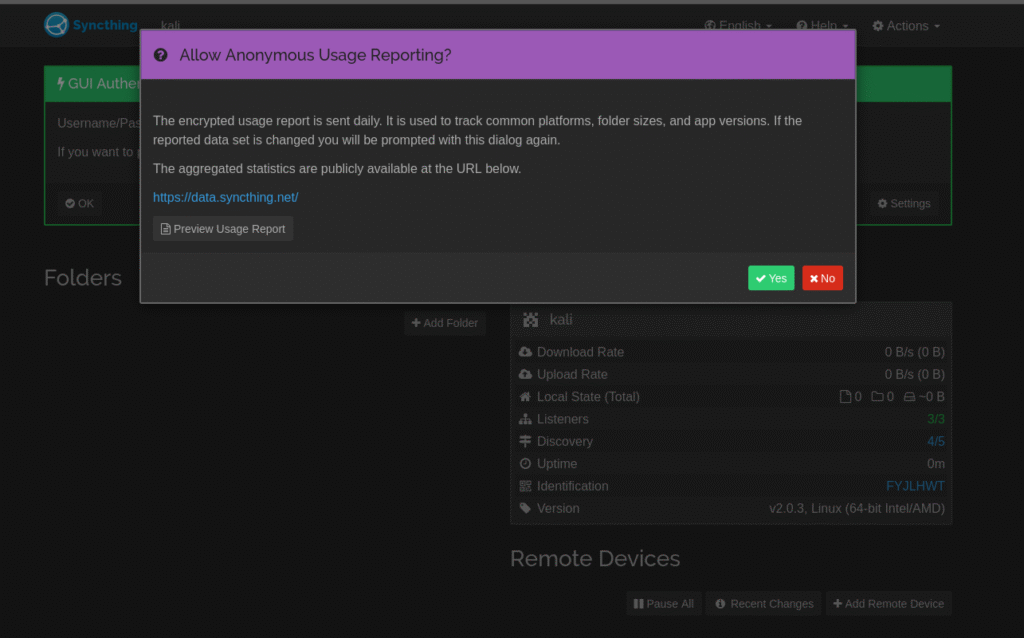
Now you can Allow the usage reporting or disallow it.
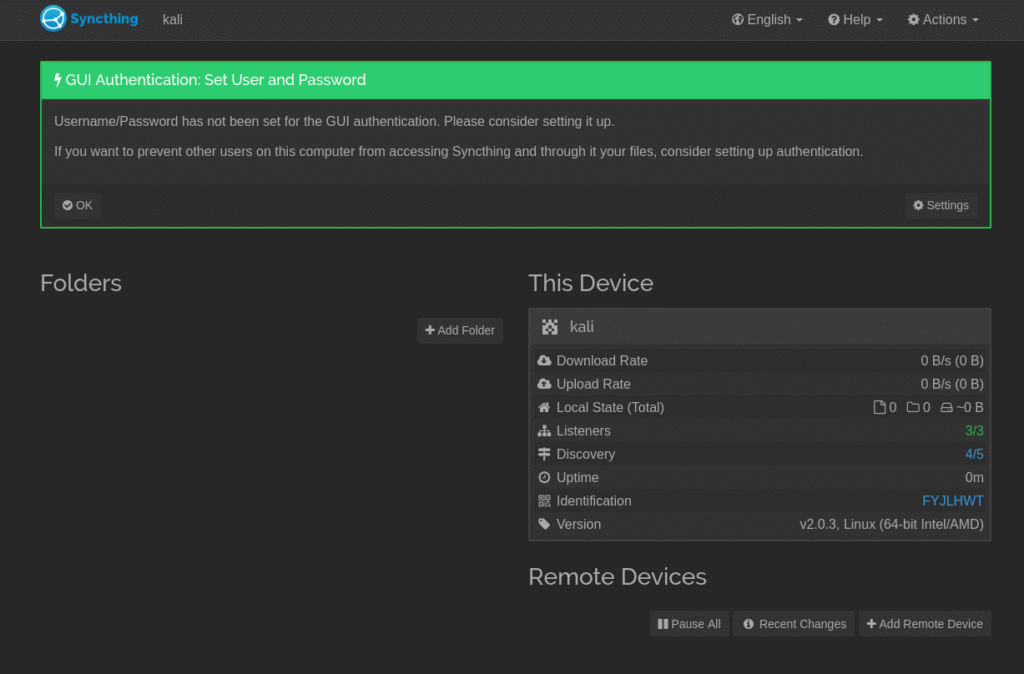
Then you can Continue without password (OK) or go to settings to configure one (Settings)
2) Connect your devices
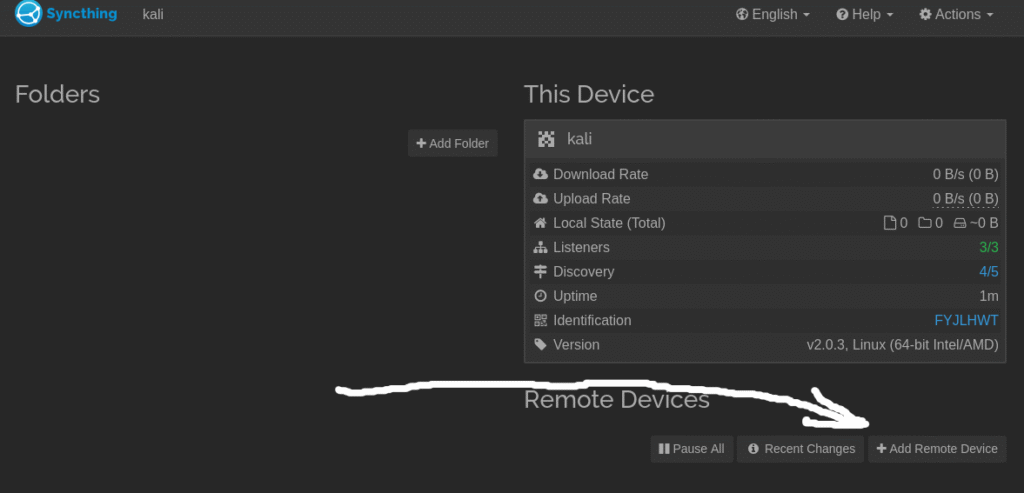
Now click on the Add Remote Device
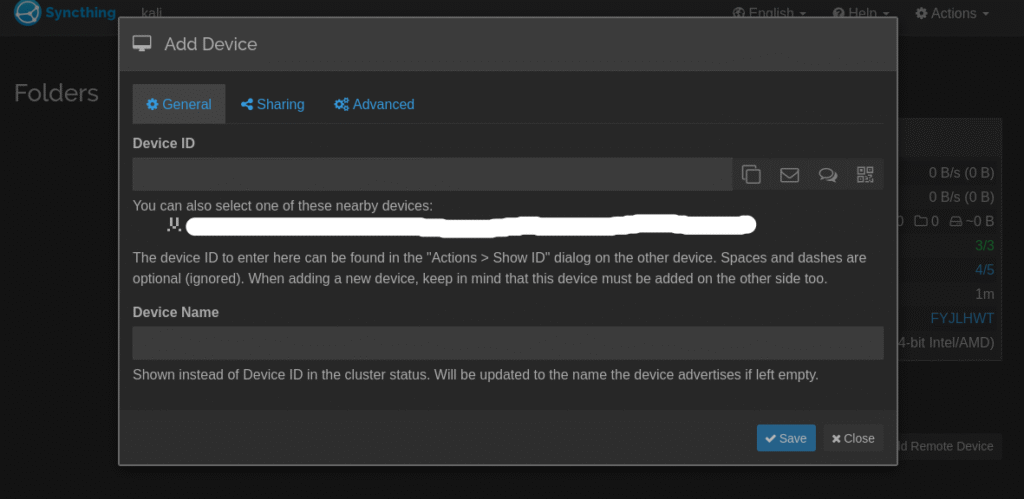
Now on the other device click on action => show ID:
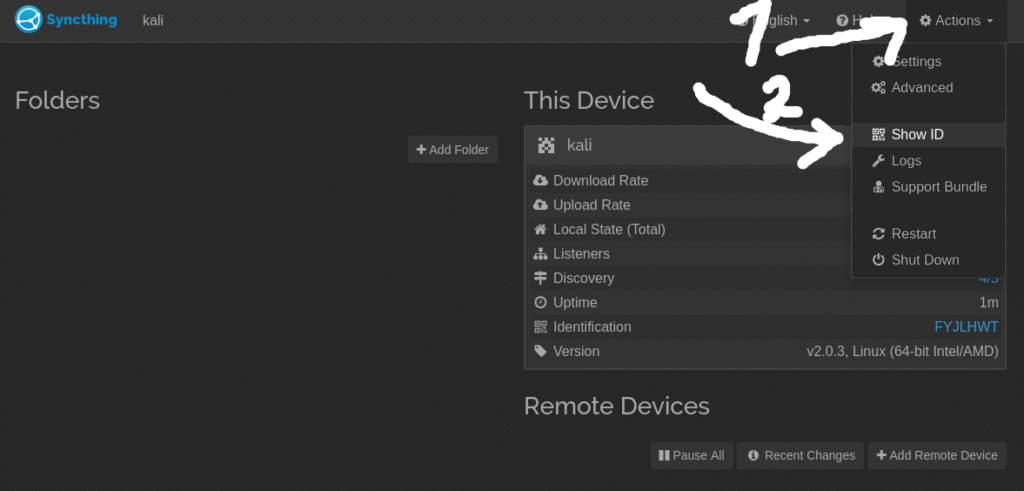
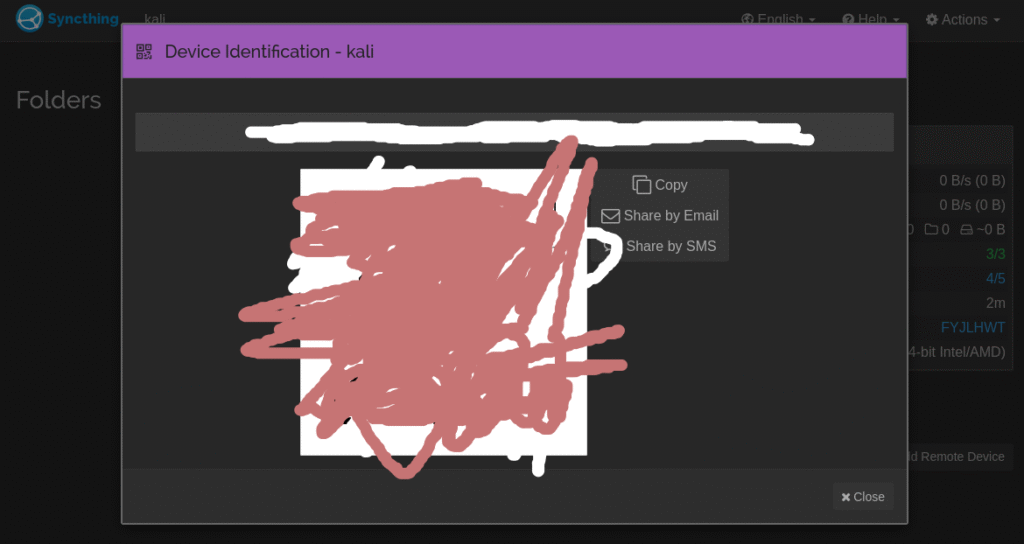
Copy this ID to the screen on the other device select how the device should be named in the syncthing GUI and click SAVE.
Now you should see the devices as Connected(Unused).
3) Share folders
On the device that has the current folder that you want to start sharing click
Add Folder
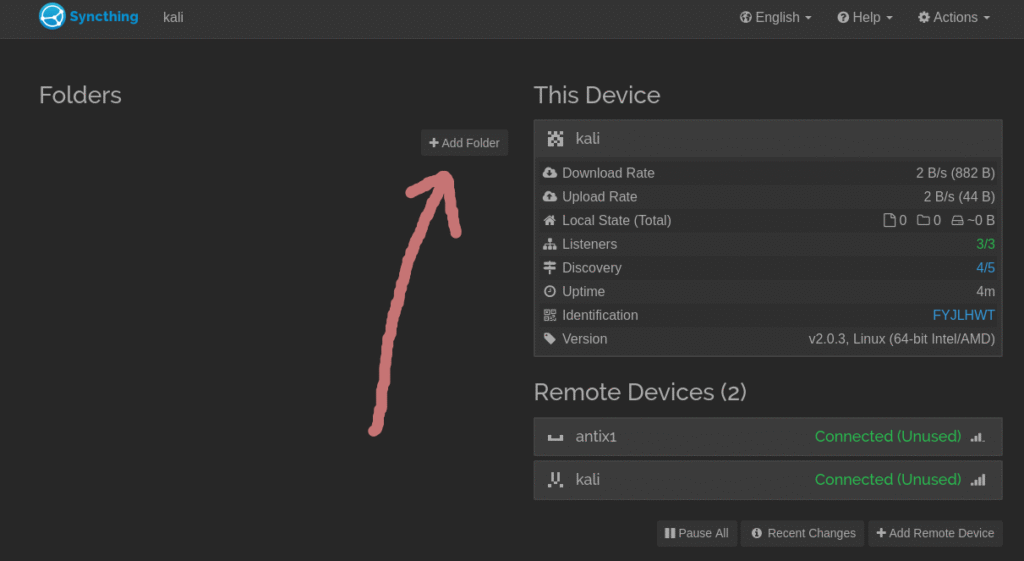
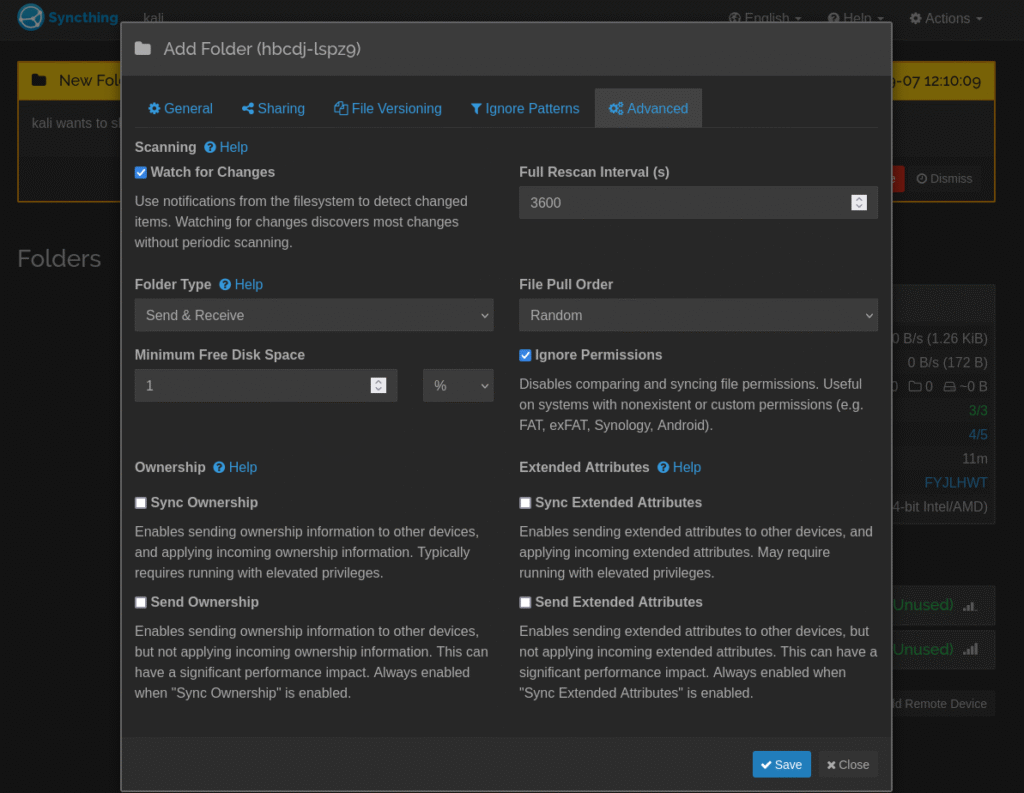
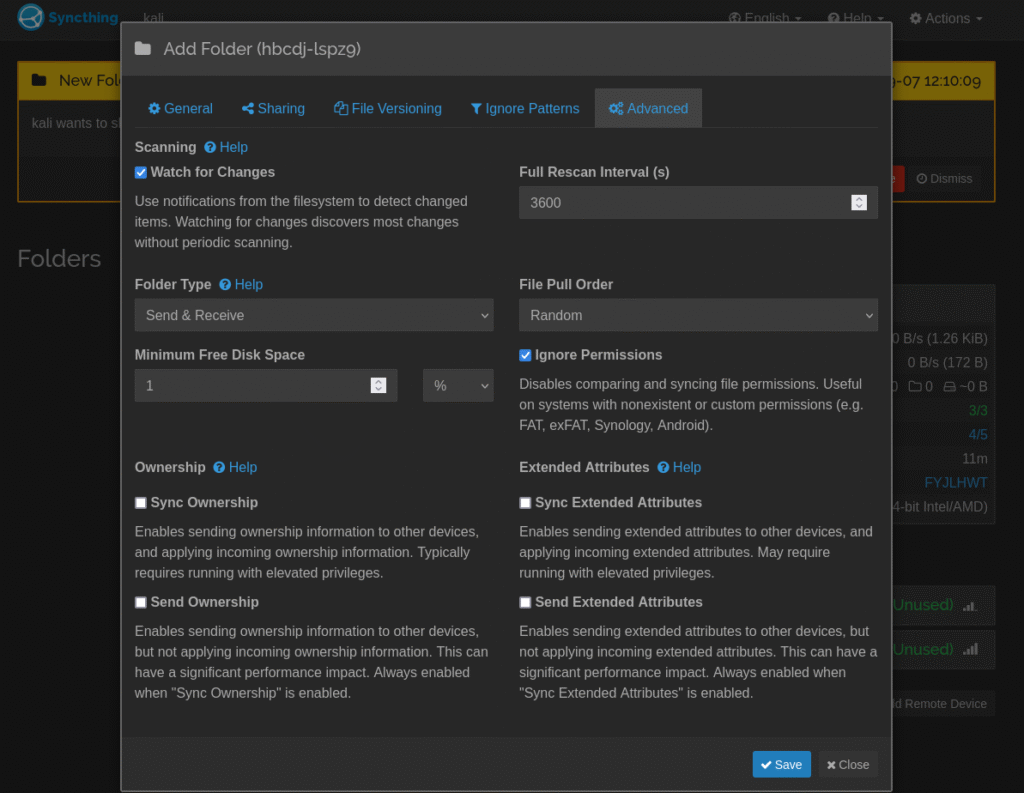
Now First go to Advanced and select Ignore Permissions
This will prevent any sync issues with permissions and is highly recommended.
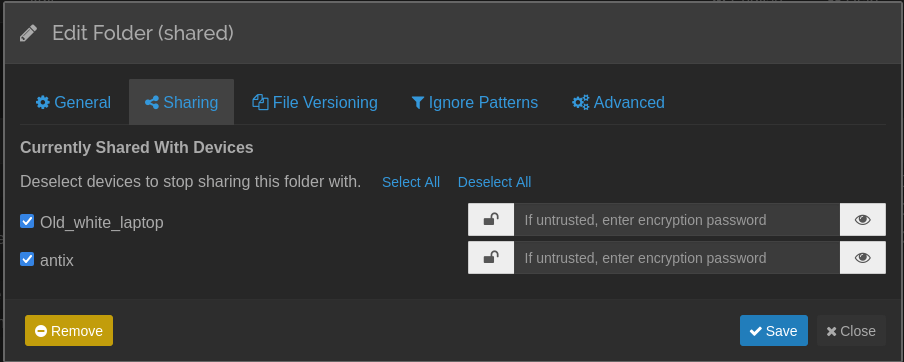
Now go to Sharing and click the devices you want to share with.
You can add a password, but if you do you must type it on all machines that will receive this folder in the future so I recommend not using one.
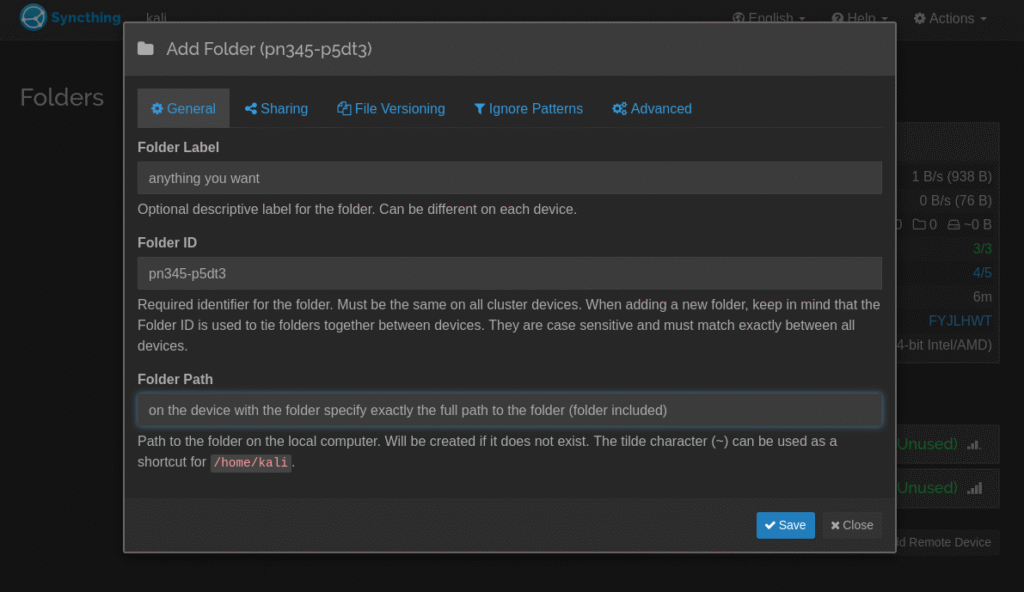
Finally go to General, type the name that will represent the folder in the syncthing GUI and Copy the full path to your folder including the folder itself. Something like:
C:\Users\[Your Username]\Desktop\[Name of the folder]
Now you can click Save
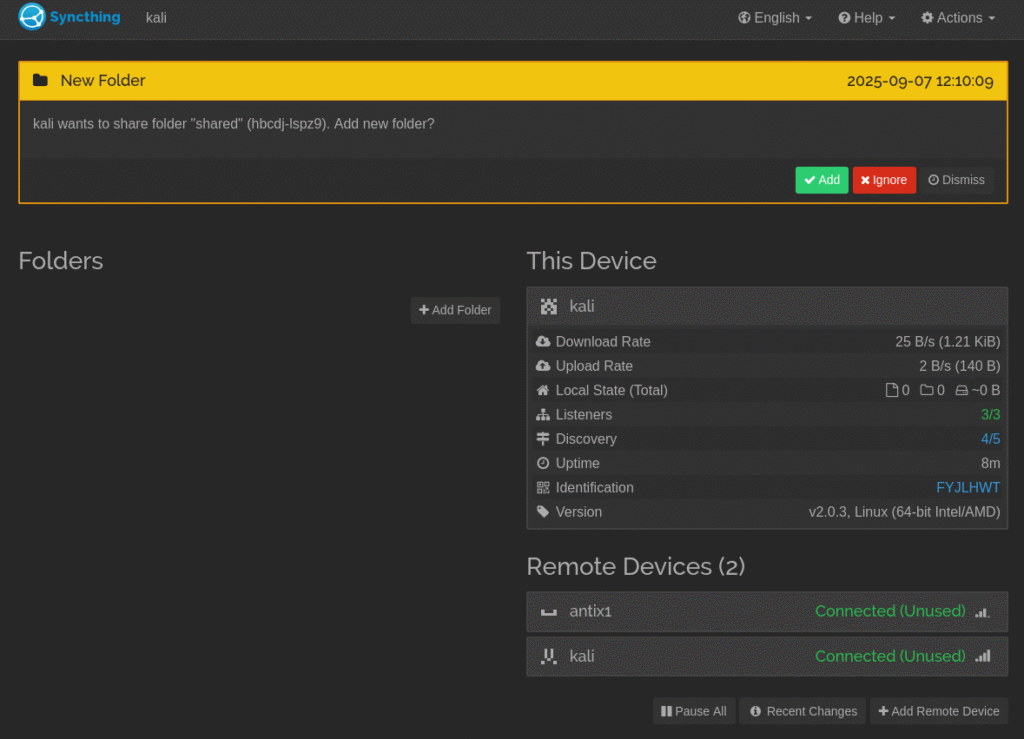
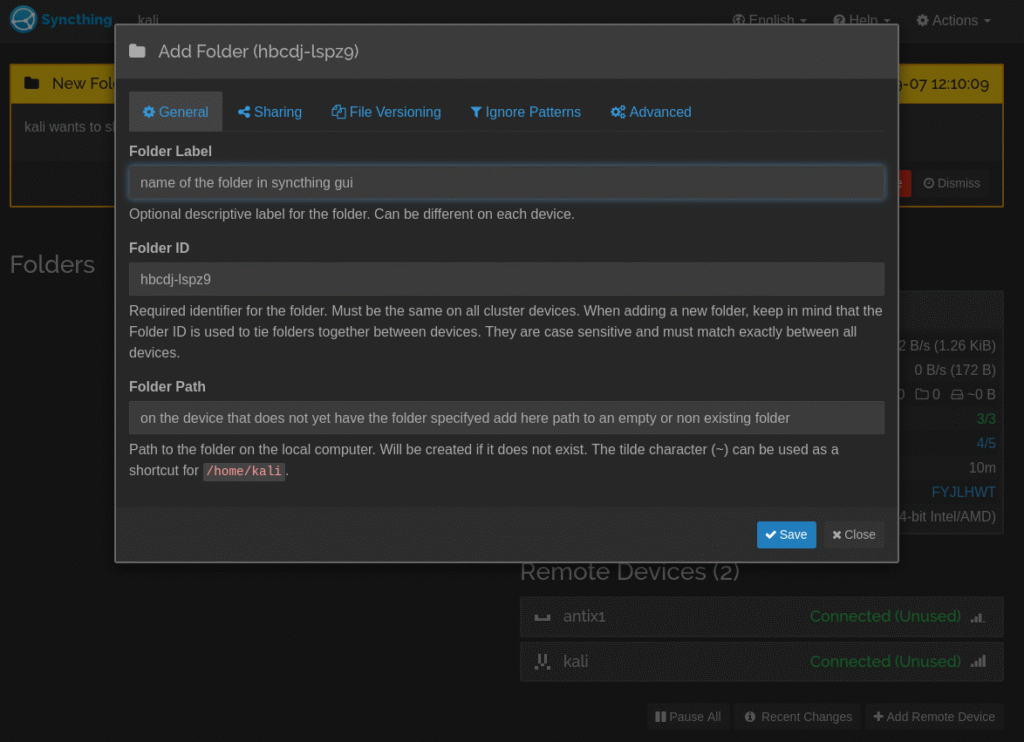
On the other device you should see something like this:
Click Add
Now again First go to Advanced and click the Ignore Permissions
Then go to General, give it name that will represent the folder in the GUI and specify the full path to folder that does not yet exist or is absolutely empty.
Something like:
C:\Users\[Your Username]\Desktop\[Name of the folder that does not exist]
Click Save
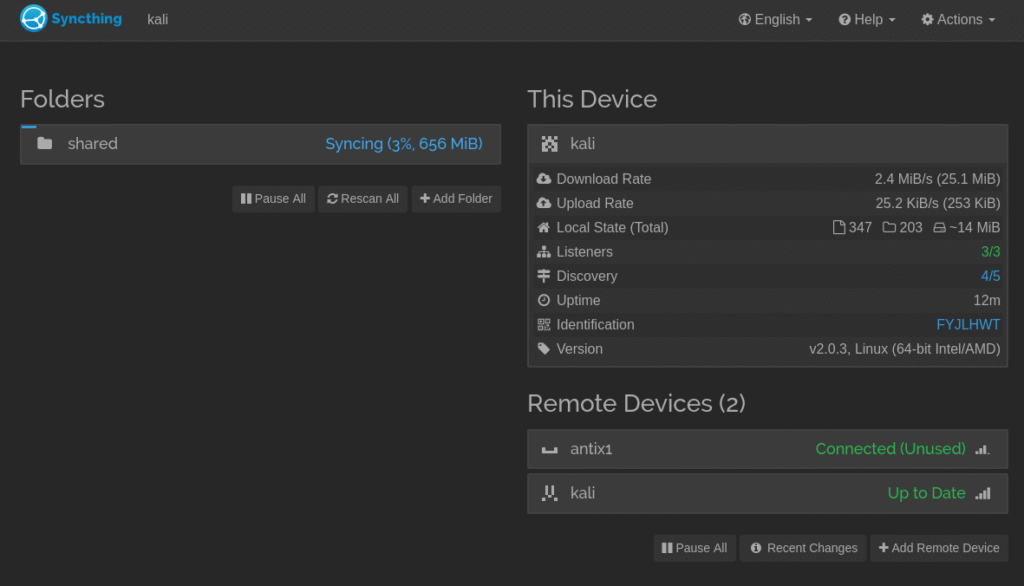
Now you should see something like this:
If the syncthing web gui does not open.
First you can go to the web GUI manually: https://127.0.0.1:8384/
If that does not load check if syncthing is running in Task manager
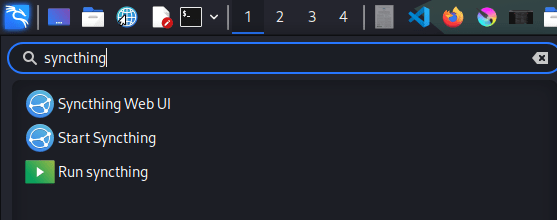
If Syncthing isn’t running try starting it by searching for syncthing in the search menu and clicking Start Syncthing
Fix to most Syncthing issues
Disclaimer!:
This will reset all the setting of your syncthing app.
The flowing steps should fix most of the folder issues that you could encounter while trying to setup your syncthing servers.
If removing the folder in syncthing did nothing or did not help your problem this trick should help.
If reinstalling syncthing did nothing or did not solve your problem this trick should help.
The issues this is targeting are: (but not limited to)
The problem with 99% sync that newer finishes.
Problem where on one machine the sync looks complete both ways but on the second machine the sync looks uncomplete.
The folder syncing files that are no longer in the folder (the volume of the folder is unreasonably big)
Folders not linking up properly even after removing and adding the folder
Folders not linking up properly even after reinstalling syncthing
1) Stop Syncthing
Go to Actions and Shutdown to stop the syncthing app
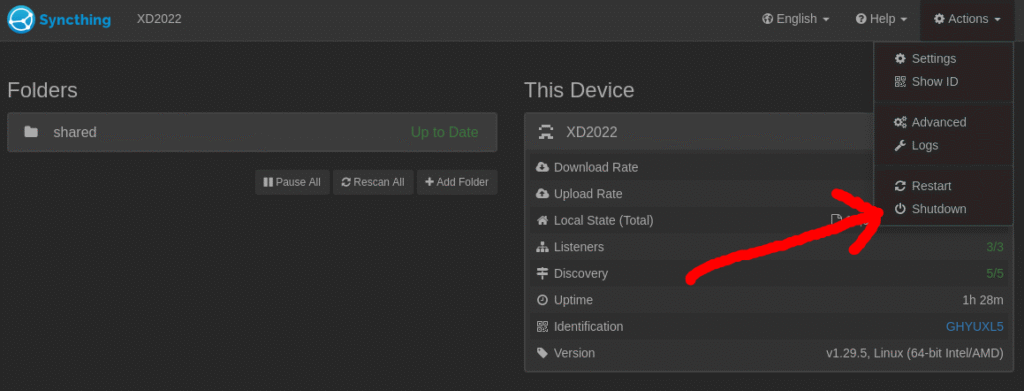
2) After the app stops go to the folder for syncthing settings and database:
More info about the config: HERE
The folder should be located here:
Linux:
/home/[name of your user]/.local/state/syncthing/
or it can be here:
/home/[name of your user]/.config/syncthing/
Windows:
%LOCALAPPDATA%\Syncthing
Here you will need to delete all folders or files that end with db or have config in their name

3) Now you can start syncthing again
4) setup your folders again from the start as mentioned in this guide above and the all the issues should disappear.
Leave a Reply